

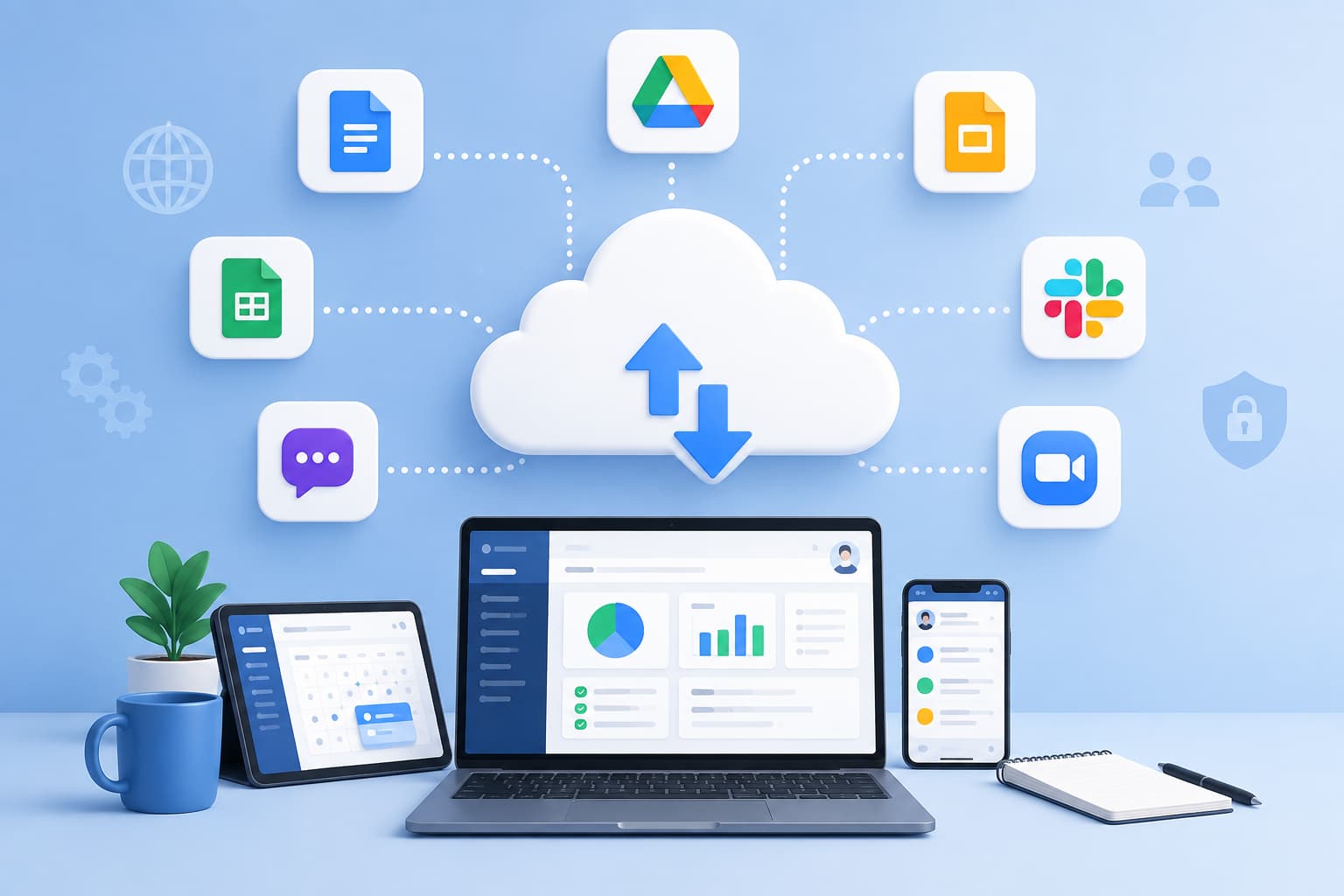
What actually makes an app “cloud-based,” and why does it matter which one your team uses? Cloud based productivity apps are software tools document editors, chat platforms, project trackers, and file storage that run on remote servers rather than a single local machine, so anyone on the team can access the same up-to-date file or conversation from any device with an internet connection.
The shift away from installed, single-device software wasn’t just a convenience upgrade. It changed how teams collaborate in real time, how IT manages access and security, and how much a business spends on software licensing versus infrastructure. It also created a new problem: most businesses now run a dozen or more of these tools at once, often overlapping, rarely well-integrated, and not always chosen deliberately.

This guide covers what cloud productivity apps actually are, the main categories, real costs and pricing models, security and compliance considerations, integration realities, and a practical framework for choosing tools that fit your business rather than adding to the pile.
What Are Cloud Based Productivity Apps?
A cloud based productivity app is software delivered over the internet from a provider’s servers, rather than installed and run entirely on a single computer. Your data lives on the provider’s infrastructure (with local caching for offline use, in many cases), and the application itself updates automatically without anyone needing to install a new version.
This is the same delivery model behind the broader term SaaS (software as a service), just applied specifically to the tools people use for daily work: writing documents, messaging colleagues, tracking projects, storing files, and running meetings. The defining characteristics are real-time collaboration (multiple people editing or viewing the same document simultaneously), device independence (the same app and data on a laptop, tablet, or phone), and centralized updates (the provider pushes new features and security patches without IT needing to manage installations across every machine).
How Cloud Productivity Apps Work
Behind the interface, most cloud productivity apps share a similar architecture: a browser or lightweight client app connects to the provider’s servers, which store the actual data and handle the logic for permissions, syncing, and collaboration. When two people edit the same document, the app is continuously synchronizing changes between their sessions and the central copy, which is why edits appear almost instantly for both people, rather than requiring anyone to manually save and re-share a file.
Authentication typically runs through the provider’s identity system or, in a business setting, through single sign-on (SSO) connected to the company’s own identity provider, letting IT control access centrally rather than managing separate logins for every tool. Permissions are usually set at the file, folder, or workspace level, determining who can view, comment, or edit.
Main Categories of Cloud Productivity Apps
Document and spreadsheet editors (Google Docs/Sheets, Microsoft 365) handle the core writing and data work most businesses run on daily, with real-time co-editing and version history built in.
Communication and chat platforms (Slack, Microsoft Teams) replace or supplement email for day-to-day team conversation, typically organized into channels or threads by team, project, or topic.
Project and task management tools (Asana, Trello, Monday, ClickUp) track who’s doing what, by when, usually with some combination of boards, lists, timelines, and automation for recurring workflows.
Cloud file storage and sharing (Google Drive, Dropbox, OneDrive) centralizes documents so they’re accessible from anywhere, with permission controls replacing the old practice of emailing file attachments back and forth.
Video conferencing (Zoom, Google Meet, Microsoft Teams) handles remote and hybrid meetings, a category that went from occasional use to core infrastructure for most businesses.
Note-taking and knowledge management (Notion, Confluence, Evernote) store internal documentation, meeting notes, and institutional knowledge in a searchable, linkable format that plain file storage doesn’t handle well.
Workflow automation (Zapier, Make) connects other tools, automatically moving data or triggering actions across your stack without manual work, increasingly important as the number of separate tools grows.
Lightweight CRM and sales tools (HubSpot, Pipedrive) track customer relationships and sales pipelines in the cloud, often the first “business system” a growing company adopts beyond pure internal productivity.
Key Benefits and Business Impact
Real-time collaboration. Multiple people can work on the same document or board simultaneously, cutting out the version-control chaos of emailing files back and forth. Trade-off: this only genuinely helps teams that actually collaborate on the same documents regularly; a team of mostly independent contributors gains less from this than the marketing spend around it suggests.
Accessibility from any device. Employees can work from a laptop, tablet, or phone with the same data and interface. Trade-off: this convenience is also a security consideration; more access points mean more places credentials or devices can be compromised if access controls aren’t properly configured.
Automatic updates and reduced IT overhead. The provider handles patches, feature releases, and infrastructure maintenance, freeing internal IT from managing installations across every machine. Trade-off: businesses lose some control over when features change; a UI update or removed feature can land without warning, sometimes disrupting established workflows.
Lower upfront cost. Subscription pricing avoids large upfront software purchases and hardware investments. Trade-off: subscription costs compound over time and across many tools; a business running fifteen SaaS subscriptions can end up spending more annually than a smaller number of well-chosen, well-integrated tools would have cost.
Scalability. Adding or removing users is usually a matter of changing a subscription tier, not provisioning new hardware. Trade-off: this ease of scaling can encourage under-scrutinized growth in tool spend; adding five more seats is easy enough that nobody stops to ask if the tool is still the right fit.
Built-in redundancy and backup. Data typically lives on the provider’s redundant infrastructure rather than a single office server, reducing the risk of catastrophic local data loss. Trade-off: this shifts trust to the provider’s own reliability and security practices; an outage on their end is now your outage too, and you have limited control over it.
Security and Data Considerations
Cloud productivity apps introduce a different security model than locally installed software: instead of protecting a single machine, you’re managing access across every device, browser, and integration connected to the account.
Core considerations include access control (who can view, edit, or share each document or workspace), single sign-on and multi-factor authentication (centralizing and strengthening login security rather than relying on individual passwords per tool), data residency (which country or region the provider stores your data in, relevant for regulatory requirements), encryption in transit and at rest, third-party app permissions (many productivity tools support plug-ins or integrations that request broad access to your data worth auditing periodically), and admin visibility (whether IT has centralized oversight of who’s using what, and what they can access).
Using a reputable cloud provider doesn’t automatically make your data secure. Most providers offer strong security infrastructure, but misconfigured permissions, weak password practices, or an employee granting a risky third-party integration broad access can undermine that infrastructure entirely. Security in this model is a shared responsibility: the provider secures the platform; your configuration and user practices secure your actual data.
Costs and Pricing Models
Cloud productivity tools are almost universally priced per user, per month, with tiered plans that unlock additional storage, admin controls, integrations, or advanced features at higher price points. A small team can often start on a free or low-cost tier; the real cost conversation starts once a business is running several of these tools across dozens of employees.
Per-seat pricing is straightforward but scales linearly with headcount: a 50-person company on five tools at $10-15 per seat per month is easily paying several thousand dollars monthly before accounting for enterprise add-ons like advanced security or storage.
Tiered plans typically restrict features like admin controls, audit logs, or advanced integrations to higher tiers. A common trap is a business staying on a cheaper tier that lacks the security controls its data actually requires, simply because nobody revisited the plan as the company grew.
Storage overages are a frequent surprise cost: free or base-tier storage limits get hit faster than expected once a team is storing videos, design files, or years of accumulated documents.
The real cost isn’t the advertised per-seat price; it’s the total software stack. A business that has quietly accumulated a dozen overlapping tools (two chat platforms, three project trackers left over from different team preferences, redundant file storage) is paying for redundancy nobody’s auditing. A periodic software audit listing every active subscription and who actually uses it routinely uncovers meaningful, easy savings that a cheaper per-seat rate on any single tool wouldn’t touch.
Integration and Ecosystem Considerations
Most businesses don’t run one productivity app; they run a stack, and how well that stack talks to itself matters as much as any individual tool’s features. A project management tool that doesn’t integrate with your chat platform means manual status updates; a document editor with clunky file storage integration means people saving local copies that immediately go out of sync with the shared version.
Two broad approaches dominate here: suite-based ecosystems (Google Workspace or Microsoft 365, where document editing, email, storage, and often chat and video are bundled and tightly integrated by the same vendor) versus best-of-breed stacks (choosing the strongest individual tool in each category and connecting them via native integrations or automation platforms like Zapier).
Suite-based ecosystems reduce integration friction significantly but can mean settling for a weaker tool in a specific category because it’s bundled. Best-of-breed stacks give you stronger individual tools but put integration and maintenance burden on your team; a workflow automation breaking silently between two disconnected apps is a real and common failure mode, not a theoretical one.
How to Choose Cloud Productivity Apps for Your Business
Work through these factors before evaluating specific products: team size and how distributed or remote the team is, which categories of tools you genuinely need versus which are nice-to-have, existing tools already embedded in daily workflows (switching costs are real), security and compliance requirements specific to your industry, budget both per-seat and total stack cost, integration needs across your existing systems, admin and IT oversight requirements, and how much customization versus simplicity your team actually wants.
| Business Situation | Reasonable Starting Point |
|---|---|
| Small team, straightforward needs | A single integrated suite (Google Workspace or Microsoft 365) |
| Distributed/remote-first team | Strong chat and video conferencing as the priority, suite as the base |
| Heavy project coordination | Dedicated project management tool integrated with chat |
| Knowledge-heavy or documentation-driven team | Dedicated note-taking/wiki tool alongside a suite |
| Regulated industry | Security- and compliance-focused evaluation before feature comparison |
| Multiple disconnected tools already in use | Software audit before adding anything new |
None of these is a fixed rule; a ten-person startup with strict compliance requirements needs a different starting point than a ten-person creative agency. The right combination depends on what your team actually does daily, not which tools have the most features on their marketing page.
Don’t Add Tools You Don’t Need Yet
It’s easy to accumulate productivity software a free trial here, a tool a new hire prefers there until the stack itself becomes a source of confusion rather than efficiency. Signs a business has over-tooled: employees unsure which tool to check for a given piece of information, the same conversation happening in two different chat platforms, files duplicated across multiple storage systems, and nobody able to say confidently how many active subscriptions the company is actually paying for.
A simpler stack that everyone actually uses consistently beats a sophisticated stack that’s only partially adopted. Before adding a new tool, it’s worth asking whether an existing one, properly configured, could solve the same problem. A project management feature already sitting unused in your current suite is a better solution than a new subscription for a standalone tool doing the same job.
Real-World Scenarios (Hypothetical, for Illustration)
A ten-person startup just getting organized is usually best served by a single integrated suite covering email, documents, storage, and basic chat, adding specialized tools only once a specific, named gap appears (a dedicated project tracker once task coordination genuinely outgrows a shared spreadsheet, for instance).
A fully remote 50-person company depends heavily on communication and video conferencing quality, since there’s no hallway conversation to fall back on; investment here often matters more than in document editing features that any suite already handles adequately.
A design or creative agency juggling large files and heavy collaboration needs strong cloud storage with generous limits and robust version history, since file size and revision tracking matter more here than in most other business types.
A regulated business (healthcare, finance, legal) needs to evaluate data residency, encryption, admin controls, and compliance certifications before comparing feature sets; the cheapest or most popular tool in a category isn’t a safe default if it doesn’t meet the specific regulatory bar the business operates under.
A fast-growing company that adopted tools ad hoc in its early days often benefits most from a software audit rather than a new purchase; consolidating overlapping subscriptions and standardizing on fewer, better-integrated tools typically saves both money and the friction of employees not knowing where to find things.
Frequently Asked Questions
What are cloud based productivity apps?
Cloud based productivity apps are software tools, document editors, chat platforms, project trackers, and file storage that run on a provider’s remote servers rather than a single local device, allowing real-time collaboration and access from any device with an internet connection.
What are examples of cloud productivity apps?
Common examples include Google Workspace and Microsoft 365 for documents and email, Slack and Microsoft Teams for communication, Asana and Trello for project management, Dropbox and Google Drive for file storage, and Zoom for video conferencing.
Are cloud productivity apps secure?
Reputable providers invest heavily in security infrastructure, but security also depends on your own configuration, access controls, multi-factor authentication, and careful management of third-party integrations. Using a secure provider doesn’t eliminate the need for good internal security practices.
How much do cloud productivity apps cost?
Most are priced per user per month, with tiered plans unlocking more storage, admin controls, or advanced features at higher tiers. The real cost consideration for most businesses is the total stack across multiple tools, not any single tool’s advertised rate.
Should a small business use an all-in-one suite or separate best-of-breed tools?
An integrated suite (Google Workspace or Microsoft 365) usually makes sense for smaller teams needing simplicity and tight integration. Best-of-breed tools can offer stronger individual features but require more effort to keep them properly connected.
How do cloud productivity apps handle data storage and backup?
Data is stored on the provider’s redundant infrastructure rather than a single local device, which reduces the risk of catastrophic local data loss, though businesses should still understand the provider’s specific backup, retention, and data residency policies.
Can cloud productivity apps work offline?
Many support limited offline functionality with local caching, syncing changes once the connection is restored, but full functionality, especially real-time collaboration, generally requires an active internet connection.
How do I choose the right cloud productivity apps for my business?
Start with your team’s actual needs, size, distribution, security requirements, and existing tools already in use rather than comparing feature lists first. An audit of what you already have often reveals gaps or overlaps before you consider adding anything new.
What’s the biggest mistake businesses make with cloud productivity apps?
Accumulating overlapping tools without a periodic audit. Many businesses end up paying for multiple subscriptions doing similar jobs, with employees unsure which tool holds the information they need. A simpler, well-adopted stack usually outperforms a sprawling one.
Conclusion
There’s no single “best” set of cloud based productivity apps; the right combination depends on your team’s size, how distributed it is, your security and compliance requirements, and how well the tools you choose actually integrate.
What matters more than any individual product’s feature list: whether your team consistently uses what you’ve chosen, whether your security configuration matches your actual risk profile, and whether your total software spend reflects genuine need rather than accumulated, unaudited subscriptions. A smaller, well-integrated stack that everyone actually uses will outperform a larger one full of redundant tools nearly every time.
Start with what your business genuinely needs today, audit what you already have before adding anything new, and treat security configuration as seriously as feature selection.
Not sure whether your current productivity stack fits your business? If you’re evaluating new tools, consolidating an overgrown stack, or trying to understand what your current setup is actually costing you, it’s worth getting an outside review. Talk to a technology consultant to get your software stack reviewed against your team’s actual needs.